
Set up
Getting Started
Install Nearbys Australia, open it outdoors, and find your way round it with three buttons.
What you need
- A supported Garmin watch: Forerunner, fēnix, epix, Venu, vívoactive, Instinct 3 AMOLED and more, 72 in all. See Watches for the list.
- The Garmin Connect IQ or Garmin Connect app on your phone, to install the app. After that you do not need the phone: Nearbys does not use it.
- A clear view of the sky for the GPS.
Install
Open the install link
Find Nearbys Australia in the Connect IQ Store, in the Garmin Connect IQ app on your phone.
Install it to your watch
Choose your watch and let it sync with your phone.
The first minute
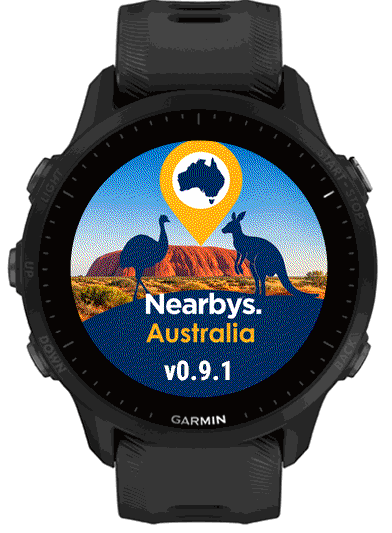
Nearbys opens with its artwork and the app's version for about a second, and then shows the Location page. The watch needs a moment to find the satellites, so go outside and look at the line near the top of the screen:
- GPS GOOD (green): a position you can rely on.
- GPS USABLE (orange): good enough to use.
- GPS POOR (red): wait a little longer.
- GPS KNOWN (amber) and an age: the last position the watch had, not where you are now.
The Location page explains each one.
The pages
The glance
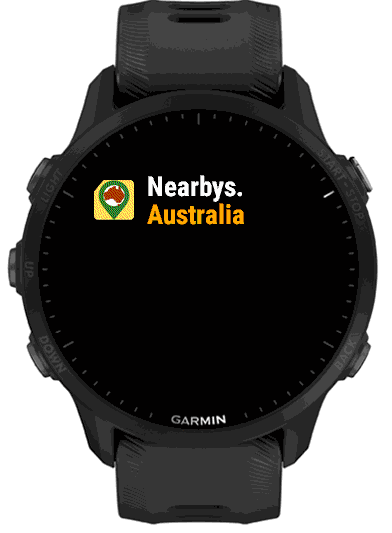
Nearbys has a glance: a strip in your watch's glance list (the list you can open during an activity) with its icon, "Nearbys." in white and "Australia" in orange. Select it to open the app. The glance only shows the name: it does not look anything up.
Your data stays on the watch
Nearbys has no account, no sign-in and no network permission. Your saved points and your Settings are kept on the watch only, and an update of the app keeps them. There is nothing to set up on your phone: the app has no phone settings.